
How to make a whiteboard explainer video from a text prompt
· 4 min read · The Explainly team
Whiteboard explainer videos work because they show an idea being built one piece at a time: a drawing appears, the narration explains it, the next piece connects to it. The catch has always been making them. You either draw and record everything yourself, or you assemble scenes, timing and voiceover in animation software, which takes hours even for a short video.
This guide shows the third way: you describe what you want explained, and an AI writes the script, draws the board, narrates it and hands you an MP4. We'll use Explainly, the tool we build, and go through every step, including what it costs and how to write a prompt that gets a good result.
Here is the whole process in 90 seconds, as a whiteboard video that was itself made with Explainly:
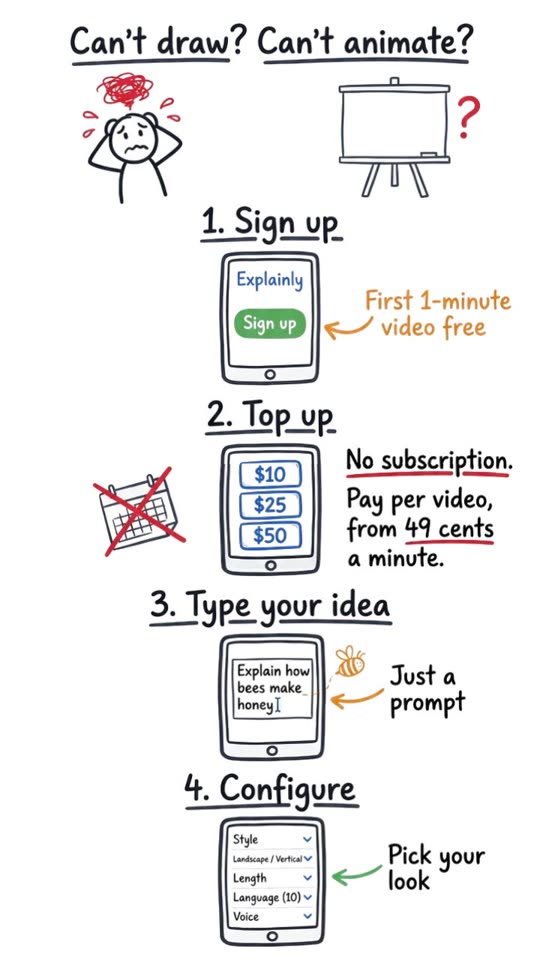
Step 1: Sign up
Create an account with your email or Google. Your first 1-minute video is free, with no card needed (free spots are limited each day), so you can see the result before paying anything.
Step 2: Top up credits (no subscription)
Explainly is pay-as-you-go. You buy a credit pack once and spend it on the videos you make. Nothing renews.
- Packs: $10, $25, or $50 (the $50 pack includes a $5 bonus).
- Rates: Whiteboard videos cost $0.49 per minute at 720p and $0.69 per minute at 1080p. Slideshow mode, which draws a full illustration for every scene, costs $0.99 and $1.39 per minute.
- Refunds: you are charged for the minutes actually produced, so if the video runs shorter than requested, the difference comes back to your balance. Failed generations are refunded in full.
So a 5-minute 1080p whiteboard video costs about $3.45, and a 1-minute vertical video for Shorts or Reels costs $0.49. The pricing page always shows the live rates.
Step 3: Type your idea
Write what you want explained in the prompt box. It can be one sentence ("Explain how rainbows form in three simple steps") or a long paste of your lesson notes or a script outline. The box accepts up to 50,000 characters and has basic formatting (headings, lists, bold), which helps when you paste structured notes.
Step 4: Pick the look
Before you generate, choose:
- Style: for example Classic (white board) or Neon (black board).
- Format: 16:9 landscape for YouTube, slides and LMS videos, or 9:16 vertical for Shorts, Reels and TikTok.
- Resolution: 720p or 1080p.
- Length: from about 1 minute up to about 15 minutes.
- Language: English, Romanian, Spanish, French, German, Italian, Portuguese, Dutch, Polish or Russian. The script and the narration are both written in that language.
- Voice: ten narrator voices, each with a sample you can play before choosing.
You can also add Pip, Explainly's marker mascot, for a friendlier feel. The form shows the exact price of the video before you start.
Step 5: Generate and wait a few minutes
Press Generate video. You can watch the progress as it works through four stages: writing the storyboard, drawing the boards, recording the narration and assembling the reveal. A short video takes a few minutes; longer ones take longer. You can leave the page and come back, since the video keeps going on our servers and stays in My videos.
Step 6: Watch, download, post
When it's done, the video plays right away in your browser. Click Render to MP4 to get a downloadable file, then Download MP4.
Below the video, you'll also find a ready-made YouTube description and a set of tags, each with a Copy button. That saves you the last annoying step of publishing.
How to write a prompt that gets a good video
The AI plans the video from what you give it, so a few details in the prompt go a long way:
- Say who it's for. "For 10-year-olds", "for first-year nursing students" or "for busy managers" changes the vocabulary, the pace and the examples.
- Give the structure you want. "Explain it in three steps", "start with a common myth and correct it", or "end with a one-line summary" all show up in the result.
- Ask for an analogy. Whiteboards are great at analogies: "explain an API using a waiter in a restaurant" makes a far better video than "explain APIs".
- Include the facts that must be right. If numbers, names or definitions matter, put them in the prompt (for example "use $100 at 5% a year: $105 after one year, $110.25 after two"). Then watch the result before you publish it, as you would with any draft.
- Match the length to the idea. One idea fits in a 1-minute vertical video. A full lesson needs 5 to 10 minutes. Squeezing a lesson into one minute makes it rushed.
- Name what should be drawn, if you have a picture in mind: "draw a phone in the middle and show each step on its screen" is exactly how the video above was made.
When a whiteboard video is the right choice
Whiteboard videos shine when you need to explain a process, a cause and effect, or a concept with a few moving parts: science topics, how a product works, onboarding steps, a policy change, the logic of a formula. They work less well for things that need real footage, such as showing a physical product, a place or a person.
If you teach, train people or publish on YouTube, try it on the topic you explain most often. That's where a reusable video saves the most time.